Sunday, May 26, 2013

Adding Linux to My Samsung Chromebook

Why I Need Linux

I described my reasons for needing some Linux applications in previous blog posts. To summarize briefly:
  • I want to use a local mail client instead of using Gmail or some other web-based mail client
  • I want to continue using GnuCash.
  • I want to continue using GIMP for image processing
  • I want to continue using LibreOffice for document generation
  • I want to be able to access my scanner
  • I need native code to access my Garmin ANT+ USB stick to download date from my Garmin GPS watch to my computer.
As I also explained previously, part of my concern is the security and privacy of my data if I use Cloud storage and/or web-based applications.  Were it not for those concerns, the only thing I really couldn't do is use my Garmin ANT+ USB stick. For the scanner, theoretically I could scan to a USB flash drive and transfer images that way. 

I described in this blog post my decision to use crouton to provide me with an Ubuntu environment to run alongside the Chrome OS environment.

Installing Crouton

I described near the bottom of this blog post the steps I would take to install crouton with Enlightenment (e17) as my desktop environment.  I followed the steps as described (which took approximately 30 minutes), and after the system rebooted I did the following:
  • I used Ctrl-Alt-T to open a terminal (crosh).
  • Into the terminal window I typed "shell" (without the quotes) and hit enter
  • I typed "sudo starte17" and hit enter
  • Enlightenment started (quickly) and I was in!
As advertised, I could use Ctrl-Alt-Shift-leftarrow to get back to the regular Chrome OS, and Ctrl-Alt-Shift-rightarrow to get back to the Linux environment. (The left and right arrow keys are on the top row of the keyboard, next to the ESC key.) The switching was essentially instantaneous.

Next Steps

The crouton installation process installed a basic set of packages (applications, utilities, libraries, etc.) plus the enlightenment desktop environment, since that is the one I chose.  Obviously though there were additional packages I wanted to add. To make that easier, I first installed synaptic:

sudo apt-get install synaptic

I have used synaptic for many years. In recent years, Ubuntu has not installed synaptic by default, but instead installed the Ubuntu Software Center.  I read a comment recently where someone said that the Ubuntu software-center could be installed in the crouton environment as well, but as of this writing I have not tried it.  

With synaptic installed, I could now enter synaptic to search for and install additional packages. Using synaptic (as well as the command line apt-get tool), dependencies would be found and downloaded as well.   To my surprise, when I tried to execute "sudo synaptic" the command was not found. I searched around and found that the executable was actually" synaptic-pkexec". Entering 

sudo synaptic-pkexec 

worked. Of course it asked me for my password. I updated the sudoers file so that I would be allowed to execute it without entering the password (if I am logged in). This allowed me to invoke synaptic from the menu as well. Note that with recent versions of Ubuntu (like 13.04 which I installed) you can create sudoers entries in new files (which get included) in the /etc/sudoers.d directory rather than editing the sudoers file directly.  Of course, you still need to know the correct format.

Using Enlightenment

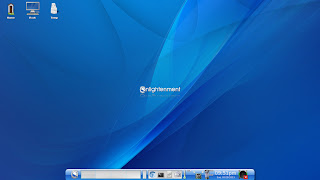
Given that I had previously mainly been using GNOME or KDE, Enlightenment (e17) was new to me.  I was a little disappointed to learn that the version installed was not the 0.17.3 latest stable version. I attempted to use an enlightenment PPA to add the latest version, but the PPA did not include ARM builds.  I may consider trying to build the e17 and e17-data packages myself in the future if newer ARM versions do not become available.  Here is a screenshot of my Enlightenment desktop:

Adding Additional Applications

Mail Client (Sylpheed)

As discussed in a previous blog post, I had chosen sylpheed as my email client. Within synaptic, all I had to do was search for synaptic and then install it.  I did this and I was able to start it immediately.  The next step was a little more involved though. I was interested in the HtmlView plug-in for sylpheed so I could have HTML within email rendered if desired.  Unfortunately, the HtmlView plug-in for sylpheed was not in the Ubuntu repository.  This is understandable, since the plug-in is developed by a single individual who may not have the time and/or desire to build packages for various types of distributions and architectures. The site for it though provided steps for downloading and building it.  If you have not ever done anything like this it might be a little daunting, but I have.

However, initially I tried to build it on my Thinkpad laptop, before receiving the Chromebook. The problem with that is that the Thinkpad and the Chromebook use different architectures. The Thinkpad is Intel (x86_64) and the Chromebook is ARM (armhf).  So in trying to build the plug-in for Chromebook on my Thinkpad, I was cross-compiling.  Typical packages for building an application are really written assuming you are building on the same platform you are going to be running the program on.  I explained in this blog post my attempt to cross-compile the HtmlView plug-in. Prior to my Chomebook arriving, I did spend a fair amount of time trying to update the make files to use the Sourcery CodeBench Lite Edition to cross-compile the code. While I was able to get it to compile,  I was not able to get the code to link properly.  I abandoned the effort once I received the Chromebook and decided to build on the Chromebook instead. I may go back and try cross-compiling again some time in the future.

In order to build the package on the Chromebook I had to install additional packages. This is hopefully a complete list: build-essential, autogen, git, subversion, libglib2.0-dev, automake, libtool, libgtk2.0-dev, libgpgme11-dev, flex, bison.  Once I got all the correct packages installed, following the documented steps resulted in a successful compilation. Of course, as usual, I had to start over the make steps (not the download steps) each time I discovered a missing package.

After building the HtmlView plug-in successfully (which included copying the plug-in to the correct directory via the "make copy" step), I restarted sylpheed. At first I did not see an HTML tab show up for emails containing HTML. I read the README.md file  that came with the source and saw that I had to go to Configuration->Common Preferences, then click on the Display tab, and then the Attachment sub-tab and check the "Toggle attachment list view with tab" checkbox.  After doing this I got an HTML tab, as you can see in this screenshot (Text tab selected):


When I click on the HTML tab I get the HTML rendering for the message, as shown below:


One thing to be aware of is that if you are in the HTML tab and click on a link in the message, it will render the HTML for that link directly in the message window (in sylpheed) rather than opening a browser. Once I did that I did not see a way to get back to the previous HTML. Right clicking did bring up a menu, but the "Back" button was grayed out. So at this point if I want to click on a link, I will probably go back to the the Text tab first and click on it there. When I click on a link from the Text tab, it opens the Chrome browser. I didn't install that so I assume either crouton did or one of the other packages I downloaded had a dependency on it. 

Note that there are some HtmlView configuration options under Tools->HtmlView. One of these is a checkbox which causes the HTML tab to be rendered automatically. I chose not to do this, partially because of the linking issue mentioned above.

On my Thinkpad, I was able to export my mail files (in Mbox file format) in Thunderbird using the ImportExportTools plug-in I had previously installed. Within sylpheed I could select the file to import from and specify which folder to import those messages into.  I was able to export my address books in LDIF format and import them into sylpheed. Note however that in sylpheed you just get the name and email normally. Any additional information (like phone number) shows up in the Remarks field.

In using sylpheed for a few days, I have found it to be pretty fully featured.  It doesn't have extras, like a calendar, but for email it has a lot, including support for IMAP, encryption (GnuPG), IPV6, and filtering.

By the way, sylpheed was written by Hiroyuki Yamamoto and, according to the FAQ, "sylpheed" means light weight (like air).  This supposedly explains why it is so fast.

At his point I am pretty satisfied with sylpheed.  Running it in the crouton chroot environment, I have a couple of minor concerns:
  • If I click on a link, it launches the browser in the chroot environment. I have Chrome running in the Chrome OS environment, so I would rather see my web stuff there.
  • When I am in the Chrome OS environment, I have no notification that I have new email unless I switch over to the chroot environment and check the sylpheed email client.
At this point these are clearly minor concerns.  However, I am considering if I might be able to remedy these issues with some coding.  From perusing some of the Chrome development documentation, it appears that you can send some messages over a socket. There are some sample applications that demonstrate this.  Thus I am considering doing the following:
  1. Write a simple application to run with the Linux chroot which opens a socket on localhost (127.0.1.1) and sends a message indicating a URL to render in the Chrome browser, or some information about message(s) received.
  2. Write a Chrome app or extension to read from the socket and get the information. For a URL, it would open a tab for that URL.  For notifications, it would use some sort of notification API (I assume there is one) to display messages.
On the Linux side, invoking the tool with the URL is simple, since the sylpheed has a configuration option to control what to do with URLs. I could tell it to invoke my new tool, passing the URL.  For the notification part, I might have to write a sylpheed plug-in.

For the notifications, I would only want to send the notifications to the Chrome OS environment if I was viewing that environment, but not if I was in the Linux chroot environment. Whether or not I can determine that will take further investigation.

Additionally, when running in the Linux chroot environment and sending over a URL to open, it would be nice if there was a programmatic way to switch to the Chrome OS environment (rather than Ctrl-Alt-Shift-leftarrow).  I don't know if that is possible.

In terms of notifications, after thinking about it for a while, I realized that I theoretically would be working mainly in the Chrome OS environment. Therefore it would be nice to know in that environment whether I had email to check. If I did, I could then go over to the email client and read the email. In looking for something along those lines, I found X-notifier. There is a version in the Chrome web app store. It supports multiple email accounts, plus there are available scripts for various email providers (like Comcast in my case). With X-notifier you can be notified when you have e-mail. In addition, via a click, it can take you to the web email site to actually read your email.

Support for Garmin ANT+ USB Stick

For my Thinkpad, it took some investigation and attempts at various different tools before I was able to come up with a solution that would allow me to both download data from my Garmin GPS watch and process it in a display tool.  The second part was not an absolute necessity, as there is a Garmin website that you can upload the data to if you prefer.

There is more than one Linux tool for downloading data from the watch. The only one I was able to get to work was python-ant-downloader.  I was able to follow the instructions and install this program on the Chromebook.  Next I needed to add a file containing information describing the USB stick in /etc/udev/rules.d to that Linux would recognize and let me access the device. I created a 52garmin.rules (you typically use number prefixes to control the order your rule will be processed relative to other rules) containing the following:

ATTRS{idVendor}==”0fcf”, ATTRS{idProduct}==”1008″, MODE=”666″

Note that you get the vendor and product IDs by plugging in the device and using the lsusb command to get the information. Note also that you need to use sudo to copy or add files under /etc/

In order to execute the program, I needed to run it with sudo. So I created a script, called garmin_download.sh containing the following:

#!/bin/bash
sudo ant-downloader

Note that although the package is named python-ant-downloader, the actual executable program is ant-downloader.

In order to execute the program without having to enter my password, I added a file named ant-downloader in /etc/sudoers.d containing the following:

%sudo ALL=(ALL)NOPASSWD:/usr/local/bin/ant-downloader

This specifies that anyone in the sudo group can access the tool without password. In my case, my user ID is in the sudo group.  There are other ways to do this, which you can see by consulting sudoers documentation.

Previously, in investigating options for my Thinknpad, there was an additional neat tool I found. It is called cuttlefish.  It allowed me to set things up so that when I plugged by ANT+ USB stick into the USB slot on my Thinkpad the garmin_download.sh script would automatically run.  Although having the tool invoked automatically was just a convenience, it was nice to have. Unfortunately, I was unable to install cuttlefish in my crouton environment. I suspect the reason is that cuttlefish was written assuming the Unity desktop environment. Since I was using enlightenment instead, it would not install. I tried working around it briefly, but then gave up since it is not critical. I may investigate it again sometime in the future.


Initial Experience with My Samsung Chromebook

Getting Started


Getting started is pretty simple. There is not much in the box:
  • The laptop (netbook) itself
  • The AC adapter and power cord
  • A 2-sided Welcome to your Chromebook page with some very simple tips
  • A Quick Start Guide booklet (in various languages)
  • A Warranty Information card
  • A Safety Precautions booklet.

I simply connected the AC adapter and power cable and plugged it in. Then I opened the lid and powered on the unit.  First there was a screen with 3 selections:
  1. The language
  2. The keyboard layout
  3. The network. It showed various available Wi-Fi networks (I live in a multi-unit building). I selected my own wireless network, entered the password, and it connected--no problem.
Next was a screen with Terms and Conditions which I accepted.

Next was a screen to enter my Google ID (which I already have) and password.  Then it was ready. By the way, they said this model of Chromebook would start up in about 10 seconds and it really does. 

It took me through some screens showing me about using the touchpad, which was useful to me since I always used a trackpoint in the past instead.

The Desktop


The 11.6" (1366 x 768 resolution) screen is quite sharp.  Here is a screenshot of my Desktop:


On the bottom left are various applications, some of which are running. Thus this area is both a launcher and running application indicator. The leftmost icon is Google Chrome (browser).  Then comes Gmail, Google Search, etc..  If you look carefully you will see that there are little horizontal lines under 3 of these icons. They indicate applications that are currently running. The first of these running applications is showing the Ubuntu symbol. This is actually the current tab of the Chrome browser that is running (the Ubuntu Google+ Community page). Next to this is the music player symbol, as I was listening to music when I took the screenshot.  Next is the Files application. The rightmost symbol is the  Apps window. This icon is similar to what you see on some versions of Android.

The one thing that is a little strange is the current tab of Chrome has an icon showing (as running), but Chrome itself is not shown as running. I guess there is some logical reason for this, but it isn't obvious to me. (It appears this may have been changed in a later update of Chrome OS).

The bottom right has a status area, including the time, network (WiFi) indicator, battery status, and the icon for the logged in user. Chromebook does support multiple user accounts on the same device. If you click on that status area it pops up a little window which shows who is logged in, the network you are connected to, the volume, battery status, etc. It also has a settings icon (wrench) there.

File Storage


The whole idea behind the Chromebook is that you mainly use the Cloud for storage.  So although there is some local storage, it is limited.  My Chromebook has a 16GB SSD. Obviously part of this is used for Chrome OS. I think there is less than 11 GB for local storage.  If you bring up the Files app, you will see just a few names (folders). Downloads is the local storage. If you want to store local files, it has to be in Downloads or a folder (subdirectory) underneath. Given that, I wish it were called "Local Storage" or something like that, instead of just "Downloads".  But I guess the idea is that you normally should use it for temporary downloads. I did add a Music folder under Downloads to store some local music files.  

In addition to Downloads, there is the Google Drive shown as a separate name (folder).  This is where you are expected to store most of your stuff. If you sign up for Google Drive, you get 5 GB free. I read recently that this will be increasing to 15 GB soon. With most Chromebooks, you get 2 years of an additional 100 GB free. The Chrome Pixel comes with 3 years of 1 TB free I believe.

If you plug in a USB flash drive or some other external storage card (like an SD flash card), this will show up as a folder as well.  In fact when you plug in a USB flash drive, it seems to open up the Files app automatically for you.

Apps


If you click on the Apps icon it brings up a window containing installed applications. The first one I see is the Chrome Web Store, where you can find additional applications and Chrome browser extensions. Many of the applications listed are from Google, such as Chrome (browser), Google Search, YouTube (owned by Google), Gmail, Google Calendar, Google Maps, Google Drive, Google Docs, Google Sheets, Google Slides, Google+, Google Play (for Media, Books, Movies). There are also some utilities like the aforementioned Files, Scratchpad, Games, Camera, Calculator, and Video call launcher.  You can add apps of course from the Chrome Web Store. One I added was Netflix, which now does run on the Samsung Chromebook (previously it did not).

The Chrome Web Store has both apps and extensions.  The differences are sometimes subtle, but basically extensions just extend the functionality of the browser and don't really have a separate user interface (UI). Apps can have their own UI, outside the browser. I plan to try writing some simple apps or extensions. More on that hopefully in a future post.

Running (Only) in the Chrome OS Environment


As I explained in a previous post, I only decided to get a Chromebook when I learned I could run some native Linux applications in addition to what was available in the normal Chrome OS environment.  You can either dual boot (for example using ChrUbuntu) or switch between Chrome OS and Linux using crouton.

However, to this point in this post I have only described running in the Chromebook using the normal secure Chrome OS environment.   You can definitely do a lot using (only) this environment:
  • You can create documents, spreadsheets, and slides using the web-based Google applications.
  • You can play music
  • You can open various types of files, including documents and pictures
  • You can browse the web
  • You can play YouTube videos
  • You can make audio calls with Google Voice and Hangout.
  • You can watch movies with Netflix.
  • You can  print to your printer with Google Cloud Print. I got this working with my Thinkpad laptop prior to getting my Chromebook.
I am sure I left quite a few things out. The Chromebook experience is based around using Cloud storage and mainly web-based applications.  Since it arrived a few years ago, the experience and capabilities have improved pretty rapidly.  I have read lots of reviews of Chromebooks, and most conclude with something to the effect that they are nice for what they can do, but they are too limited.

Although I come somewhat to the same conclusion, I am a professional programmer and am used to tinkering and even writing my own programs when needed.  However, I can see some real advantages to the approach.  During my time at IBM there were some projects (and discussions) of locked-down desktops.  The idea was to provide an environment with the needed tools for the user community, limiting the ability to add to it. By limiting modification, you limit security issues and make it much easier to support. In fact, for many types of users (sales, marketing, etc.) typically a company provided image was provided when a user was given a new laptop or desktop.  In many cases if you called the IT Support staff for help, they might refuse to help you if you were not using one of these images.

These images were not locked down though. They were just a consistent starting point.  Users could still add additional programs. Although there were software repositories of supported programs that could be added, users were not limited to these (at least not to my knowledge).  I am sure the IT organization would prefer that users only use one of their created images and only add programs from a supported repository.  In terms of support cost (and security), this makes total sense.  However, there can be lots of additional applications out there that can make the user more productive. By not allowing them to add these applications, you can limit that employee's effectiveness to the organization. Over time though, with a rich enough application set, something like the Chromebook could provide a sufficient tool set for users. In that case, the IT support costs and security issues should decrease dramatically.

As it is today, I think the Chromebook seems like a reasonable tool for certain types of users. One such group is students, especially elementary, middle, and high school.  I assume schools don't want to spend a lot on IT support staff nor deal with security issues (viruses etc.).  In addition, they want the computers to be used for directed learning activities. I don't know if schools can limit access to certain things in the Google Web Store (like certain games), but clearly the Chromebook does not allow installing any old Windows program in existence.  Additionally, in many businesses, I think a Chromebook might make sense, depending on the role of the user.  Although a Chromebook running Chrome OS is probably not what is needed for a professional programmer, for many other jobs the Chromebook may be sufficient, at least if the company is OK with using Cloud storage and mainly web-based applications.

In addition to the reduced costs to a company that uses Chromebooks (because of reduced support costs), it is important to understand the reduction is problems and issues the individual user may experience as well.  The Chromebook can be automatically backed up and updated.  As someone who has lost things because I didn't back up frequently enough, I know the value of backups.  Not only that, but if most of the things are stored in Cloud storage there is little chance of losing much even if something does happen (crash, lost or stolen Chromebook, etc.).  The Chromebook environment greatly reduces the possibility of viruses and other security issues that render your computer unusable, or worse, cause your information or even money to be misappropriated.  Everyone knows that Windows is a security nightmare.  Mac and Linux are better but they are still a target of various exploits as well. 

Because of these factors, the Chromebook is a candidate for personal computer users as well, outside of business and school environments.  If the user is willing to work mainly with Cloud storage and web-based applications, then the cost, convenience, security, and ease-of-user cannot be beat.  It would be interesting to know that if the initial personal computers had been like the Chromebook, whether the inability to customize with zillions of different (and potentially insecure applications) would be such a big deal. 

Limitations of the Chrome OS Environment


Having described the Chrome OS secure environment and many of its assets, it is important to understand some limitations:
  • It cannot work with many (most) external devices. For example
    • It doesn't know how to work with scanners, which many people use.  That said, many scanners allow you to scan to a memory card or flash drive which you could then work with on your Chromebook. 
    • More specialized devices. I have a Garmin ANT+ USB stick which allows me to download activities (running, cycling) from my Garmin GPS watch to my computer.  There are provided Mac and Windows programs that work with this device and, thanks to volunteers, there are Linux programs available as well.  If the device you have can be treated as a USB mass-storage device, you can access it. However, my ANT+ stick is not like than and when I plug the stick into my Chromebook nothing happens in the normal Chrome OS environment.
  • Many applications are not available for it.  Yes, as stated earlier, there are many applications (like office applications for documents and presentations), mail, and calendaring that are available for the Chrome OS environment.  However, if you are used to a many types of applications on Windows, Mac, Linux, etc. chances are they aren't available on the Chromebook. You then start looking for a web-based alternative.  Take for example financial software like Quicken, or GnuCash which I use.  Quicken acquired Mint, which provides an online personal finance solution. This may be sufficient for some users, but I doubt business users would have their needs met. I have to admit though, over time, there are more and more web-based alternatives to popular native programs.
  • Most of your data is in the Cloud.  Whether it is data you store in Google Drive, or whether it is stored under the auspices of a web-based application, you don't have as much control of it.  There are two major concerns:
    • The company controlling the storage may access and use your data. For example, Gmail scans your mail for advertising and other purposes.  Even though they don't necessarily do anything nefarious with it, they also have a reputation for caving into requests from the government for user data  (including I assume email) without necessarily requiring legal justifications (i.e search warrants). 
    • Your data may get stolen or even modified. Stories of stolen user information, including personal identification and credit card information are common.  It is also common to hear of emails linked to the press or various websites.  So it is an issue of both security and privacy.  Although people like Scott McNealy (then of Sun) and Eric Schmidt (then of Google) are famous for downplaying privacy, a lot of people are still concerned about it.
As I stated in a previous post, there are several applications that I want to run that I can't run in the secure Chrome OS environment:
  • My scanner: With my laptop I an access my scanner images wirelessly. I hope to at least be able to use the USB cable to do so with crouton. Admittedly though, storing to a flash device and then inserting this into the Chromebook would not be the end of the world.
  • GnuCash: I have been using GnuCash for a long time. I am used to it, and more importantly, I don't want my financial information in the Cloud under the control of some company who may not safeguard it appropriately.
  • Email: I could use Gmail or an alternative web-based email client, but I prefer not keeping my emails on the cloud either, for privacy and security reasons.
  • GIMP: This image manipulation program is what I use to work with image files, including resizing and rotating.  I might be able to try something like Pixlr, I don't know.
  • My Garmin ANT+ stick. I need to download my activities from my GPS watch to my computer. I don't know of any way to do it with my Chromebook.
Admittedly, at this point it is not a long list. There will probably be other things I will need native (Linux) applications for, but were it not my aversion to having some data kept in the Cloud, the only definite thing I cannot handle right now is the Garmin ANT+ support.

It is also interesting to note that I was assuming I would need the linux chroot running alongside my Chrome OS environment all the time. However, except for email, the other things I need Linux for are only needed at most once a day.  Perhaps an email notifier for my Chrome OS browser that tells me when I have new email is what I really need. This would let me know when I should start up the linux chroot to look at email.

Friday, May 24, 2013

Waiting and Preparing for My Samsung Chromebook

Waiting

Although we often live in a world of nearly instant gratification, sometimes we do need to wait a little. I ordered my Samsung Series 3 on a Sunday and it was shipped the next day, I was told it would not arrive until Saturday. Since originally the web site had said if I ordered it that Sunday it would arrive around Thursday, I was a little disappointed. I contacted the seller and he said that he thought that was just the shipper's worst case scenario, and it would probably come earlier.

Preparing

While waiting for my new Chromebook to arrive, there were many things to investigate and preparations to make. I wanted to determine:
  • Which desktop environment I wanted to use I currently was using Unity. I liked KDE a lot. I had experimented with Gnome 3 Shell as well, and though I liked it, I had rendering issues which caused me to go back to Unity.  Many of the articles about crouton discussed using Xfce, although others were possible.
  • Which email client I wanted to use.  Did I want to stick with Thunderbird or go with something lighter? After all, there is limited disk space on the Chromebook and the processor is not the fastest.
  • How to get my scanner to work, if possible.
  • What exact steps would I need to take to get the crouton environment I wanted installed and running.

Desktop Environment

In trying to determine which desktop environment to use with my crouton (Ubuntu) environment, I had various considerations:
  • KDE. I really like KDE 4. When the KDE went from KDE 3 to KDE 4, there was quite  an outcry because they changed it so drastically. And for a long time, there was functionality missing in KDE 4 that was available in KDE 3.  But my experience with it was pretty positive. I really liked the plasma desktop and the Activity support, as discussed here, is unique and powerful. KDE has its own version of many applications (which may or may not be a good thing) and also can use a lot of resources, although they are constantly improving that.
  • Unity. I have been using Unity for several years. When Ubuntu (actually Canonical the company behind Ubuntu) decided not to follow the direction of the upcoming Gnome 3 (Ubuntu used Gnome 2 at the time), this caused a lot of controversy. Unity is the default desktop environment for Ubuntu, although there are flavors of Ubuntu which use KDE, Gnome 3, Xfce, and LXDE as well.  Like KDE, Unity uses quite a lot of resources. Unity changed quite a few things:
    • The Unity launcher is somewhat similar to the one used by Apple. It is on the left, and cannot be moved.  There is an auto-hide capability such that by scrolling over the left edge the launcher will slide out if covered. The launcher contains both favorite applications not yet running plus applications that re running (and you can tell the difference). It has improved over several releases.
    • The tendency is to have the application take the entire screen, rather than having separate windows visible at the same time.  And also like Apple, the menu is at the top of the screen instead of in the window containing the application. So if you do change the size of the application window so it doesn't take the entire screen, the menu is still at the top of the screen (unless you take special steps to change the behavior). Canonical's thinking behind this was a consistent interface across desktops, laptops, netbooks, tablets, phones, etc.. While these steps make sense for smaller devices, those with large screens might prefer separate windows visible concurrently. Many applications, did not work properly with the top menu bar, including IBM (Lotus) Sametime, which I worked on. There are  sites which explain how to turn it off, either globally or for a particular application.
    • Unity has Overlay Scrollbars. Although it may save a little space, I found them annoying. When I worked on IBM Sametime, I had to turn them off. A lot of people want them off, either because they didn't work for a particular application (like IBM Sametime), or they don't like them. There are numerous sites which explain how to turn them off, either globally or for a particular application.
    • Notifications. Unity has improved notifications. I like this aspect of Unity.
    • Unity has something called the Dash, which is basically a search utility. Rather than going through nested menus looking for applications, you search for it using a name or something indicating its function. That is great if you don't know what you are looking for. If you know the application and just want to get to it, it is a little bit annoying to search for it in this way. The Dash can also find documents etc. on your desktop.  It has some nice features. Opinions on it are mixed.
  • Xfce. Xfce is very lightweight and doesn't use many resources. Many of the default examples of setting up crouton show Xfce being selected. It is based on GTK+ and should be familiar looking to long-time Linux users.
  • LXDE. LXDE is supposedly lighter and faster than Xfce. It has less functionality as well. In many ways though, it looks similar to Xfce and is built on top of GTK+.
  • Enlightenment. Enlightenment (E17 is the new version) is light on resources, but has some interesting and unique features. It has a bar (you can have multiple) for launching applications. It has a box containing minimized applications. It is fully themeable. It supports compositing.  Its look sort of reminds me of the old Unix Motif.
After thinking about it awhile and looking at various pictures, I decided on Enlightenment (e17). It is lightweight, but has a unique look. Unity copies many features of apple. Xfce and LXDE are old fashioned and don't look especially different. KDE would be my second choice, but it is big and uses lots of resources. The good news is that I can change my mind later.

By the way, here is my desktop on my Thinkpad which is running Ubuntu 13.04 with Unity:


Email Client

I have used various email clients in the past. Given that I chose not to use KDE, I exclude kmail. I researched email clients I used in the past plus some more lightweight options. Under consideration were:
  • Thunderbird. I have used Thunderbird for many years. A couple of times I have gotten corrupted mailbox files and lost mail. This has taught me to back things up. I don't know if the problem is Thunderbird or something else. Thunderbird is pretty heavy and has many features, including calendars. It is the current default for Ubuntu. Mozilla, which is responsible for Thunderbird (and Firefox) is not planning to continue to make major enhancements to Thunderbird.
  • Evolution. Evolution used to be the default in Ubuntu, but was replaced by Thunderbird. I used Evolution in the past and was pretty happy with it. It is the default email client for Gnome I believe. It is pretty heavyweight.  Like Thunderbird, it has features like calendar.
  • Sylpheed.  Sylpheed is very lightweight, but has things like plug-in and junk mail support and security features.  
Again because I wanted something lightweight, I decided to try Sylpheed.  I read that it did not by itself display HTML but there is an htmlview plug-in for this.  Unfortunately, in order to get the htmlview plug-in for the Chromebook environment I would have to build it. More on that later. As with the desktop environment choice, I could always decide to change to a different email client later.

Here is a sample screenshot I found of Sylpheed:


There is one potential concern about using an email client in the chroot environment. When the email contains HTML, my initial thought is to use the htmlview plugin. However, this will render HTML in the email client window. What if I want to actually follow a link to a browser? I want to view HTML generally in the chrome browser (in Chrome OS, not linux chroot).  But if I follow a link in the email client I cannot do this.  If this turns out to be a problem, I see two potential solutions:

  1. Write some type of plug-in or add-on to the email client which sends the URL over to the Chrome OS environment (probably using a socket talking to a Chrome OS browser extension)
  2. Use a web based email client instead in the Chrome OS environment. This could mean gmail or some other, possibly one requiring a subscription.

The Epson Workforce 610 Scanner


I have an Epson Workforce All-in-one printer/scanner/copy/fax machine.  I have been able to use my scanner wirelessly thanks to the availability of packages originally developed by Avasys for Epson, and now provided by Epson itself. Unfortunately, the pre-built packages are available for Intel architecture only and nor ARM. While there is source available for the iscan package (which I might be able to build), the one for network (wireless) support is binary only (no source).  At some point I think I will try to build the iscan package for ARM.

Building htmlview for Sylpheed


As mentioned above, in order to display HTML in emails received in Sylpheed, I need the htmlview plugin. I could wait for the Chromebook to arrive and build on the machine itself. That is certainly easiest. However, given the limited disk (SSD) space I was thinking I might be able to cross-compile it instead.  That is, compile it on my Thinkpad (which has Intel architecture) targeting ARM.  Obviously it is possible, as prior to the ARM machines being available this is what had to be done.

I found some posts on how to do this, including one explaining how to cross-compile the Chrome OS itself. Then I found the Sourcery CodeBench Lite Edition. This is a free tool for cross-compiling for ARM.  I installed this and read the guide describing how to set up the system to build for ARM on a machine where the root environment is for a different architecture. Basically, I had to make a sysroot environment to contain the ARM files and point the compiler and linker to those instead of the Intel files normally used for building on my laptop.  

It was a somewhat painful process to figure out how to take the Makefiles etc. that came with the htmlview package (which actually required you to compile Sylpheed as well) to work with the ARM files instead of native files. I had to grab libglib2.0-dev and libglib2.0 debian packages for armhf and point to them. After following the instructions and spending hours, I was able to get the files to compile for sylpheed, but the link step failed. It claimed there was non-relocatable code and that -fPIC needed to be used. But I checked and saw that every file I was compiling was compiled with -fPIC. It was actually pointing at the glib library, but AFAIK this was built with -fPIC as well. After many hours I gave up and resigned myself to building on the actual Chromebook after it arrived. I may go back and try cross-compiling at some point in the future.

Determining the Steps to Set Up Crouton Environment


I decided to list out my steps to install and set up the Crouton environment ahead of time, using existing blog entries I found that described the process. Of course, I wanted to use Enlightenment (e17), so I needed to adjust the steps accordingly. These are the steps I came up with:
  • Do a factory reset of chromebook: in chromium browser:
    • Click on Settings.
    • Scroll down to and click "Show advanced settings...".
    • Scroll down to Factory Reset option and do the reset.
  • Enable developer mode:
    • Hold down ESC and Refresh buttons and hit power button. You'll enter developer mode.
    • At the recovery screen, press Ctrl+D, agree to the prompt, and you’ll boot into developer mode.
  • Download crouton to chromebook (into ~/Downloads) from  http://goo.gl/fd3zc.
  • Ctrl-Alt-T to open crosh terminal
  • Type "shell" (without the quotes) and hit enter to enter shell
  • Install crouton using entrypted chroot for enlightenment (e17) for raring ringtail release: sudo sh -e ~/Downloads/crouton -t e17 -r raring
  • Wait 30 minutes or so for the install to complete and restart
  • Again Ctrl-Alt-T to open crosh terminal
  • Type "shell" (without the quotes) and hit enter to enter shell
  • To start: sudo starte17
  • To switch back and forth between Chrome OS and Linux desktop use Ctrl+Alt+Shift+Back and Ctrl+Alt+Shift+Forward.

Arrival

The Samsung Chromebook arrived on May 23, 2013. A discussion of the setup of the actual machine will be in another post.

The Decision to Get a Samsung Series 3 Chromebook

Background

My Linux Background

I have been using Linux for well over 10 years.

Why not Windows?


The reasons I switched from Windows include:
  • Even though I am a profession programmer and have worked mostly on proprietary software, I prefer open source software.
  • I got tired of the Windows security issues.  Windows was initially designed as a single-user system that usually was not attached to any network. So there was no need to worry about security.  Even when multiple users were added and network access became more pervasive, the philosophy of Microsoft was apparently to prefer convenience (i.e. easily download and execute applications) over security.  
  • I worked at IBM for many years and the OS/2 situation certainly left a bad taste. Even though I didn't work on OS/2 myself, it was technically superior to Windows. At one time, Microsoft and IBM worked together on OS/2. At some point Microsoft abandoned the OS/2 project and focused on Windows instead. IBM developed OS/2 itself and project eventually failed.

Which Linux Distribution?

Over the years I have tried many Linux distributions:
  • Caldera Open Linux: This was before they were bought by SCO and SCO sued everyone, including IBM, for using and developing Linux.
  • Mandrake: This was later renamed Mandriva. The (French) company had financial problems, going in and out of bankruptcy and is now an open source project, called Mageia. Mandrake was one of the first significant distributions to use the  KDE graphical desktop environment.
  • Ubuntu: I have been on Ubuntu for well over 5 years. Part of the reason I chose it was because it had such a big and active community.  And it seemed like the people in the community were more interested in helping each other rather than flaming.  On Ubuntu over the years, I have used various desktop environments: KDE, Gnome, Unity, LXDE, Xfce, and others.
  • Others: Mainly at work, I also at various times used Fedora, SUSE, and Scientific Linux.

Which Hardware?

I have mainly used IBM (now Lenovo) Thinkpads.  I worked at IBM over 25 years and used them there. I appreciated the build quality and of course I was used to them. I also like, and got used to, the trackpoint, the little red mouse pointer in the middle of the keyboard:


Because I was so used to the trackpoint, I didn't think I would be as effective with a touchpad. So I was hesitant to switch.

Even though my Thinkpads came with Windows, I bought them for Linux anyway. I basically wiped out Windows and installed Linux right way.  This meant I was paying the Windows tax. I mitigated this slightly by getting my Thinkpads with the lowest level Windows edition (for example Windows XP Home instead of Windows XP Professional).

There were also a few issues running Linux on whatever model of Thinkpad I was using. But there were always solutions and workarounds available and things got better over time.

Why New Hardware Now?

My current Thinkpad T60 is over 6 years old. Even though old hardware runs Linux better than Windows (especially newer versions of Windows like Windows 7 and Windows 8), it seemed like it was time for a new machine. My T60's fan is noisy when I boot up the machine, and the battery life is not great.

Also, although ultrabooks are not saving the PC hardware business (which is in decline), I like the idea. I bought a MacBook Air for my wife for XMAS (replacing her older MacBook) and it is very nice. I like the lightness and battery life.  So while my T60 has a 15.4 inch screen, I was ready for something sleek and light, even if that meant a smaller screen.

What Other Hardware Did I Consider?

Given my history, I of course considered a new Thinkpad. As a former IBMer, Lenovo gives former (and current) IBM employees a small discount.  So I was thinking about a smaller, lighter Thinkpad with a solid-state drive (SSD) rather than a hard drive.  So I considered:
  • Thinkpad X131e: With a 128GB SSD I could get one of these for under $750.  It weighs close to 4 lbs and you can only get a 6 cell battery.
  • Thinkpad X230: With a 128GB SSD and 9 cell battery (for really long battery life) I could get one of these for just under $1000. It has a slightly larger screen than the X131e and weighs a little under 3 lbs.
  • Thinkpad X1 Carbon: This is a really sleek, lightweight model with a larger screen (14") than the other two but still weighs just under 3 lbs. It would cost over $1000 and had many less ports etc. than the other models.
After reading various reviews I had pretty much decided to get a Thinkpad 230. It was light, pretty thin,  and had lots of ports, had long battery life, and was under $1000.

Why Did I Decide on a Samsung Chromebook Instead?

Chromebooks have been around several years now and have continually improved. I was intrigued by many aspects of the Chromebooks:
  • They are sleek and light; at least most of them are.
  • They boot very quickly, some in under 10 seconds
  • They are easy to maintain and update
  • They are more secure than Windows, Mac, and even Linux
  • They are inexpensive: some models are under $200
  • You can get a couple of years (or more, depending on the model) of free Google Drive (cloud) storage for free
But is it running Linux? Well, it runs Google Chrome OS, which is a Linux derivative. However, almost everything runs in the chromium browser and there are limitations as to what you are allowed to do (for security reasons among others).  So previously when I had considered a Chromebook I had found them too limited because of the following:
  • No native email client.  Yes there is gmail, but that is really a web based and I don't want to keep my email in the cloud and have it continually scanned, etc.
  • No GNUCash. I use GNUCash for budgeting and tracking expenses.  There is no version for Chromebook.  And I was not interested in some on-line budget/expense tool.
  • No LibreOffice. Yes, I could try Google Docs but I have experience with LibreOffice (previously OpenOffice) and want to continue with it.  There are limitations to doing web-based document editing.
  • No GIMP. I use GIMP to work with images. I don't do anything fancy, but I sometimes need to resize, rotate, or convert to other formats.
  • No scanner access.
  • No way to read data from my Garmin GPS watch. There are programs I have on Linux that allow me to insert my Garmin USB stick and have the data automatically downloaded to the computer. I have another program that processes the data.
  • Other tools, like the PDF toolkit which I use.
So given the above limitations a Chromebook was not a realistic option for me. Then I found posts like this one talking about crouton. With this tool, you can run a separate copy of Linux (in this case Ubuntu) inside the Chrome OS environment. This is somewhat secure, as the chroot environment it runs in has limited access to the rest of the OS and filesystem.

With crouton I can use both the Chrome OS and Ubuntu environments. I can use the regular Chrome OS things that work well, but can use Ubuntu for native programs that I prefer to run or that can only be run natively.  And according to the various discussions I read, you can switch between the two environments with a single keystroke.

Which Chromebook?

Given the idea that I could theoretically use a Chromebook to do what I have done in the past with Ubuntu running exclusively on a laptop, which would I want to buy? I considered the following:
  • The Samsung (Series 3) Chromebook. For $249, it has 6.5 hours of battery life, weighs less than 2.5 lbs, and boots under 10 seconds. It uses an ARM processor and has no fan (which makes it quiet and run cool).
  • The Acer C7 Chromebook. For $199, it has 4 hours of batter life, weighs about 3 lbs, and boots in under 20 seconds. It uses and Intel Celeron processor.
  • The Google Chromebook Pixel. For $1299, you get 5 hours of battery life, it has an incredibly high resolution (and touch) screen, weighs less than 3.5 lbs. It comes with 32GB SSD (the other models have 16GB) and 1TB of free Google Drive storage (the other models come with 100GB). And, as this article discusses, it is used by Linux creator Linus Torvalds.
Lenovo has a Chromebook (based on X131e) which I would have considered, but apparently Lenovo only sells it to schools.

While the Chromebook Pixel looks cool and I might have been able to get one slightly cheaper on ebay (apparently they were given out at the Google IO conference and some attendees were selling theirs), I decided it was too expensive for something I wasn't sure I would really like.  I chose the Samsung Chromebook because it is lighter, boots faster, has better battery life, and has no fan.  Here is a picture:


My only major concern (other than the possibility of not liking the whole Chromebrook thing and deciding to just install Ubuntu) was the fact that the Samsung Chromebook had an ARM chip.  Gentoo (which Ubuntu is based on) and Ubuntu have most packages available for the ARM (armhf) architecture.  However, there are some exceptions. Some packages are proprietary and come from the manufacturer. Since Linux on ARM is fairly new, they may not have ARM versions and if the source is not available, I could be stuck.  That appears to be the case with my Epson all-in-one printer (Workforce 610).  The scan program has source available so I might be able to compile that for ARM. However, the package that allows wireless access to the scanner contains a binary (compiled program) only and is currently available for Intel 32 and 64 bit computers only.  Unless they create an ARM version (unlikely for old models) or make the source available, I probably cannot access the scanner remotely.  If the iscan program can be compiled for ARM, or if the sane/Xsane program handles it as is, I hopefully can access the scanner via USB cable. After all, since you have to put the page to be scanned on the scanner, having proximity (of the Chromebook) to the scanner is not a real issue.

Next

So I ordered the Samsung Chromebook on-line on May 19, 2013 with delivery expected later that week. Future posts will cover the preparation for and initial experience with the Chromebook.